How do I add an event or training?
You can create an event from the org calendar or a course calendar. The process is the same in both places.
- Open the calendar (org or course level).
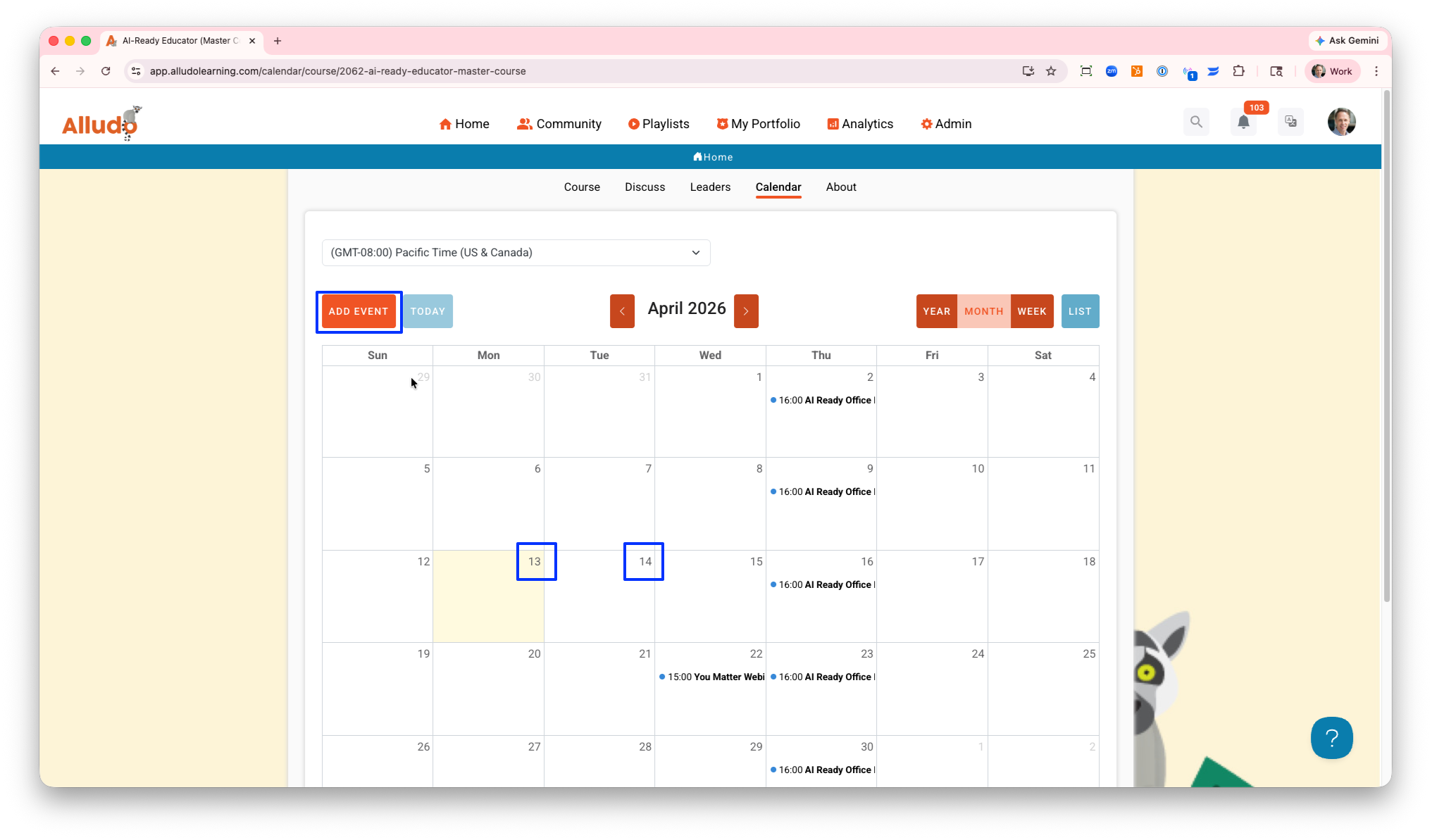
- Click Add Event in the top right — or click directly on any date as a shortcut.
- Fill in the event details (see fields below).
- Optionally, upload a custom background image to brand the event card.
- Click Save. The event appears on the calendar immediately.
Click "Add Event" or click on the date in the calendar
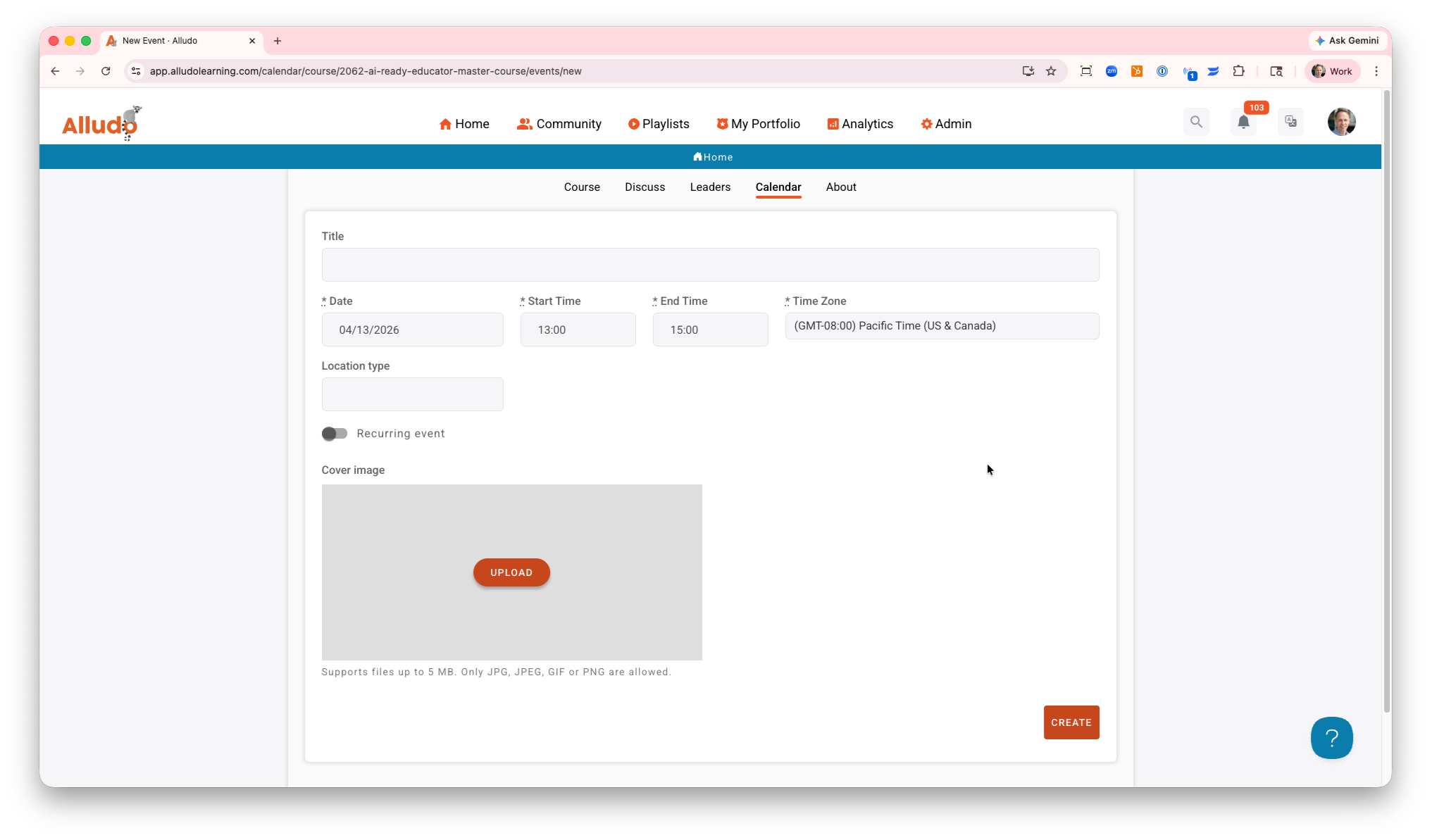
Title: The title of the event
Date: Date of the event
Start time: time the event starts
End Time: time the event ends
Time Zone: time zone for the event
Cover image: image displayed to learners when clicking on the event